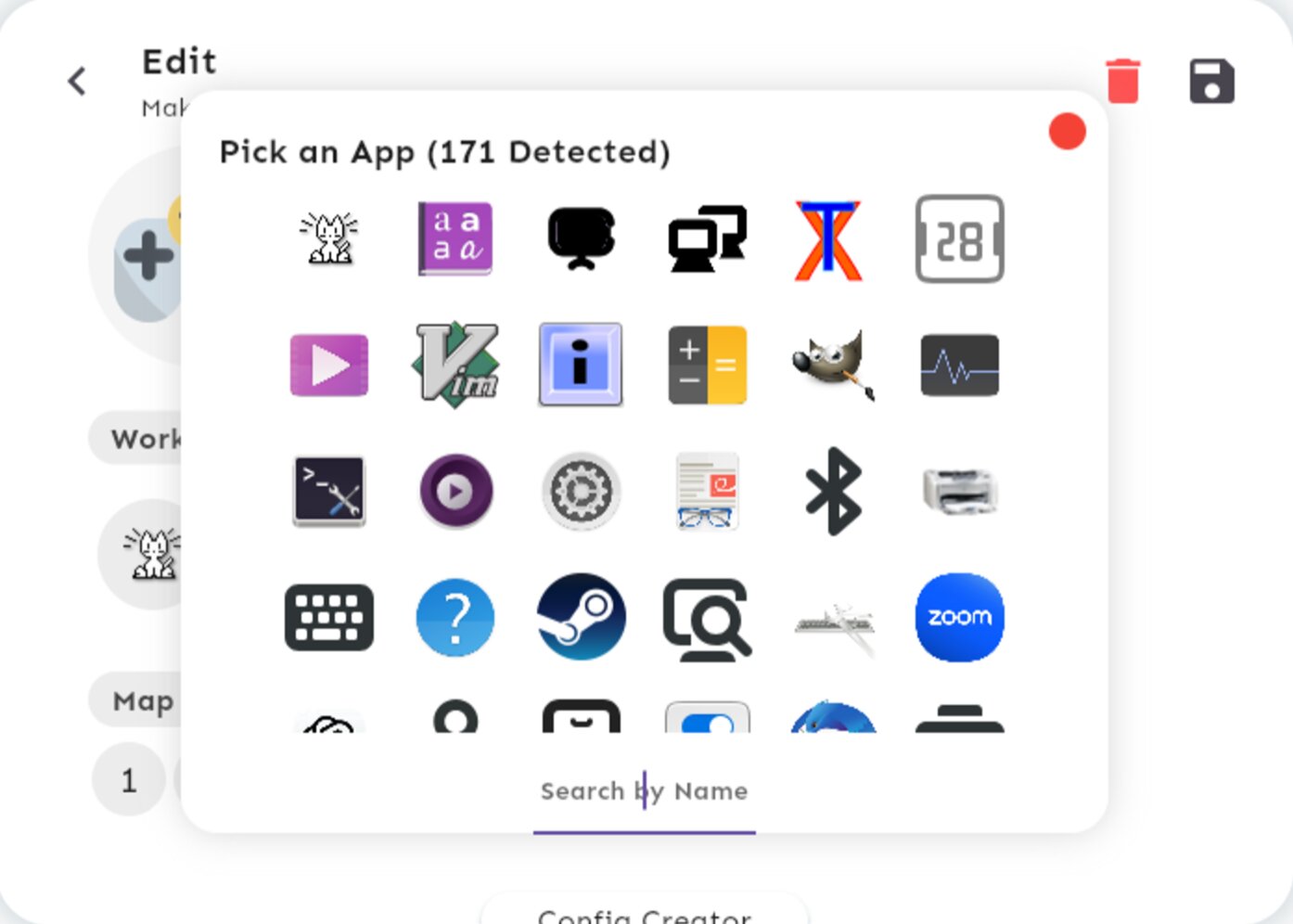
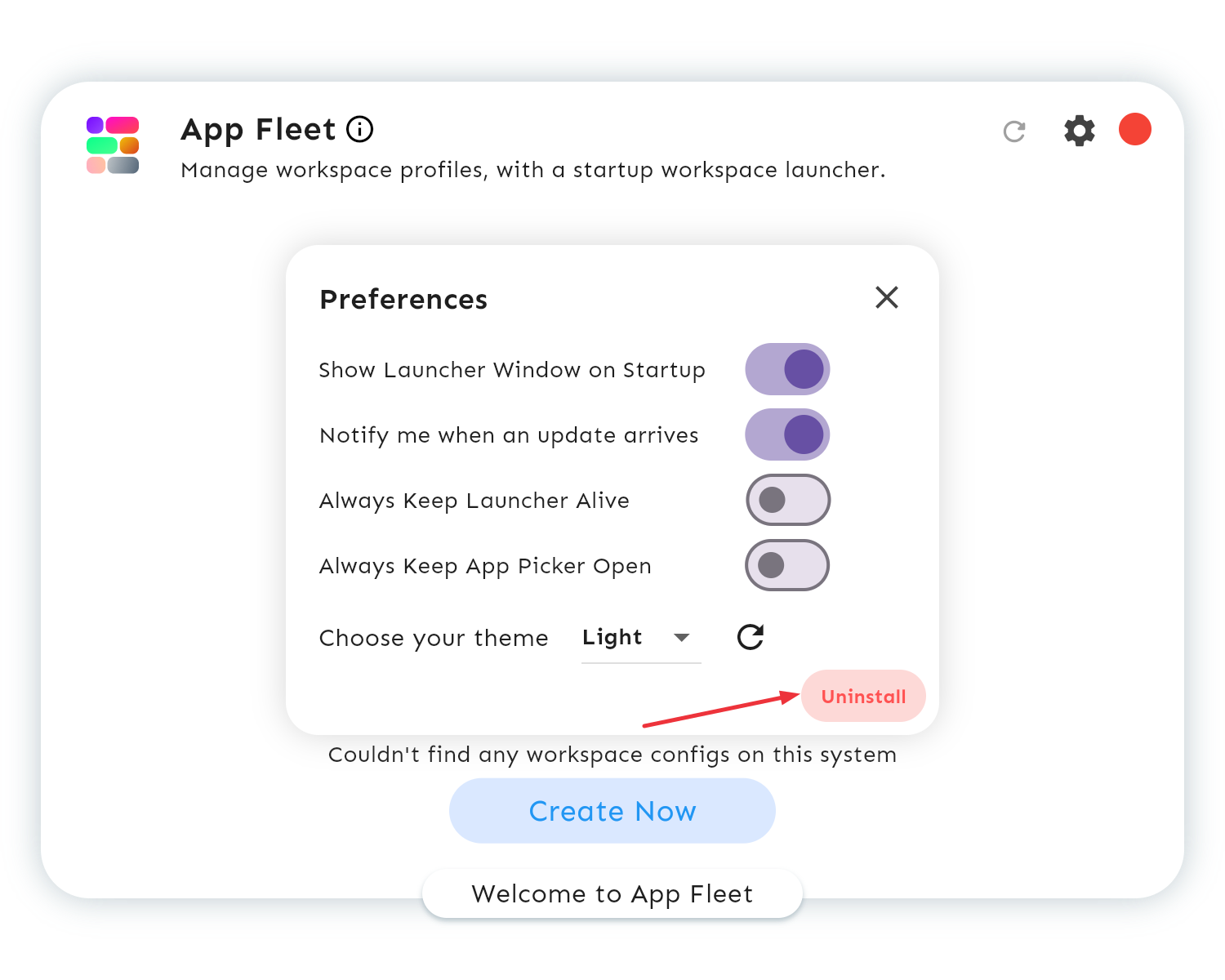
تتيح بيئات سطح المكتب الحديثة في لينكس للمستخدمين إنشاء مساحات عمل متعددة على سطح المكتب نفسه. هذه ميزة مفيدة للغاية للمستخدمين الذين يتنقلون باستمرار بين مجموعات التطبيقات أو مجموعات نوافذ المتصفح التي تحتوي على علامات تبويب متعددة.
لكن تشغيل كل هذه التطبيقات يدويًا عند بدء التشغيل يعد مهمة شاقة ومملة!
بالتأكيد، يمكنك كتابة نص برمجي (Script) لإنجاز هذه المهمة، ولكن مع زيادة متطلباتك، ستحتاج إلى تعديل هذه النصوص البرمجية وصيانتها، بالإضافة إلى مراجعة سجلات التشغيل إذا حدث أي خطأ، وانتظار تشغيل التطبيق فعليًا قبل تبديل مساحة العمل لبدء تشغيل تطبيق آخر…
بصراحة، يتطلب كل هذا العمل الكثير من الجهد لمجرد إعداد مساحة عمل واحدة.
ماذا لو كانت هناك أداة رسومية تقوم بكل هذا العمل نيابة عنك؟
إليك تطبيق App Fleet، وهو مدير مساحات عمل ذكي ومسرع للتشغيل مصمم خصيصًا لسطح مكتب GNOME.
يوفر لك تطبيق App Fleet مفتوح المصدر المطور بإطار Flutter كل هذا:
إنشاء تكوينات مساحات العمل المخصصة: صمم مساحات عمل تتناسب تمامًا مع احتياجاتك المحددة. سواء كانت مساحة مخصصة للعمل البرمجي، أو مساحة للإبداع، أو مساحة للبحث، فإن App Fleet يمكّنك من إنشاء البيئة المثالية لكل مهمة.
نهاية عهد النصوص البرمجية المعقدة: تنسى التعامل مع النصوص البرمجية المعقدة عند بدء التشغيل. يتولى App Fleet كل شيء، ويضمن تشغيل التطبيقات المطلوبة بسلاسة في مساحات العمل المخصصة لها.
تعزيز الكفاءة: عزز إنتاجيتك باستخدام مشغل مساحة العمل السريع. ما عليك سوى تسجيل الدخول واختيار مساحة العمل التي قمت بتكوينها مسبقًا، ليتم تشغيل جميع الأدوات الضرورية للمهمة الحالية على الفور.
مظهر جذاب: امنح مساحات العمل الخاصة بك لمسة شخصية! باستخدام App Fleet، يمكنك تعيين أسماء ورموز مميزة، مما يجعلها سهلة التعرف عليها.
أكثر من مجرد تشغيل تطبيقات: يتجاوز App Fleet تشغيل التطبيقات فقط. يمكنك حتى تكوينه لفتح علامات تبويب متصفح معينة أو تنفيذ نصوص برمجية (Shell Scripts) داخل مساحات العمل الخاصة بك، مما يزيد من تحسين سير العمل لديك.
تطبيق App Fleet ليس مجرد مدير مساحات عمل، إنه أداة قوية لتعزيز إنتاجيتك. صُمم وُجُرب على بيئة GNOME بدقة، ليوفر لك تجربة سهلة الاستخدام تزيل التعقيدات المرتبطة بإدارة مساحات عمل متعددة.
فيديو توضيحي
الفيديو من صفحة المطورين
التثبيت:
قبل تثبيت الأداة تأكد أولا من تثبيت حزمة: wmctrl
1- توزيعة فيدورا
sudo dnf install wmctrl
2- توزيعات Debian بما فيها Ubuntu والتوزيعات المبنية عليها:
sudo apt-get install -y wmctrl
3- توزيعات openSUSE
sudo zypper install wmctrl
4-توزيعات manjaro و archlinux:
sudo pacman -S wmctrl
ثم ننفذ هذا الأمر مباشرة في الطرفية لتثبيت الأداة:
الحزمة wmctrl مثبته في لينكس منت lmde افتراضيا يكفي تثبيت الواجهه الرسومية فقط.
wmctrl 1.07
Usage: wmctrl [OPTION]...
Actions:
  -m                   Show information about the window manager and
                       about the environment.
  -l                   List windows managed by the window manager.
  -d                   List desktops. The current desktop is marked
                       with an asterisk.
  -s <DESK>            Switch to the specified desktop.
  -a <WIN>             Activate the window by switching to its desktop and
                       raising it.
  -c <WIN>             Close the window gracefully.
  -R <WIN>             Move the window to the current desktop and
                       activate it.
  -r <WIN> -t <DESK>   Move the window to the specified desktop.
  -r <WIN> -e <MVARG>  Resize and move the window around the desktop.
                       The format of the <MVARG> argument is described below.
  -r <WIN> -b <STARG>  Change the state of the window. Using this option it's
                       possible for example to make the window maximized,
                       minimized or fullscreen. The format of the <STARG>
                       argument and list of possible states is given below.
  -r <WIN> -N <STR>    Set the name (long title) of the window.
  -r <WIN> -I <STR>    Set the icon name (short title) of the window.
  -r <WIN> -T <STR>    Set both the name and the icon name of the window.
  -k (on|off)          Activate or deactivate window manager's
                       "showing the desktop" mode. Many window managers
                       do not implement this mode.
  -o <X>,<Y>           Change the viewport for the current desktop.
                       The X and Y values are separated with a comma.
                       They define the top left corner of the viewport.
                       The window manager may ignore the request.
  -n <NUM>             Change number of desktops.
                       The window manager may ignore the request.
  -g <W>,<H>           Change geometry (common size) of all desktops.
                       The window manager may ignore the request.
  -h                   Print help.

Options:
  -i                   Interpret <WIN> as a numerical window ID.
  -p                   Include PIDs in the window list. Very few
                       X applications support this feature.
  -G                   Include geometry in the window list.
  -x                   Include WM_CLASS in the window list or
                       interpret <WIN> as the WM_CLASS name.
  -u                   Override auto-detection and force UTF-8 mode.
  -F                   Modifies the behavior of the window title matching
                       algorithm. It will match only the full window title
                       instead of a substring, when this option is used.
                       Furthermore it makes the matching case sensitive.
  -v                   Be verbose. Useful for debugging.
  -w <WA>              Use a workaround. The option may appear multiple
                       times. List of available workarounds is given below.

Arguments:
  <WIN>                This argument specifies the window. By default it's
                       interpreted as a string. The string is matched
                       against the window titles and the first matching
                       window is used. The matching isn't case sensitive
                       and the string may appear in any position
                       of the title.

                       The -i option may be used to interpret the argument
                       as a numerical window ID represented as a decimal
                       number. If it starts with "0x", then
                       it will be interpreted as a hexadecimal number.

                       The -x option may be used to interpret the argument
                       as a string, which is matched against the window's
                       class name (WM_CLASS property). Th first matching
                       window is used. The matching isn't case sensitive
                       and the string may appear in any position
                       of the class name. So it's recommended to  always use
                       the -F option in conjunction with the -x option.

                       The special string ":SELECT:" (without the quotes)
                       may be used to instruct wmctrl to let you select the
                       window by clicking on it.

                       The special string ":ACTIVE:" (without the quotes)
                       may be used to instruct wmctrl to use the currently
                       active window for the action.

  <DESK>               A desktop number. Desktops are counted from zero.

  <MVARG>              Specifies a change to the position and size
                       of the window. The format of the argument is:

                       <G>,<X>,<Y>,<W>,<H>

                       <G>: Gravity specified as a number. The numbers are
                          defined in the EWMH specification. The value of
                          zero is particularly useful, it means "use the
                          default gravity of the window".
                       <X>,<Y>: Coordinates of new position of the window.
                       <W>,<H>: New width and height of the window.

                       The value of -1 may appear in place of
                       any of the <X>, <Y>, <W> and <H> properties
                       to left the property unchanged.

  <STARG>              Specifies a change to the state of the window
                       by the means of _NET_WM_STATE request.
                       This option allows two properties to be changed
                       simultaneously, specifically to allow both
                       horizontal and vertical maximization to be
                       altered together.

                       The format of the argument is:

                       (remove|add|toggle),<PROP1>[,<PROP2>]

                       The EWMH specification defines the
                       following properties:

                           modal, sticky, maximized_vert, maximized_horz,
                           shaded, skip_taskbar, skip_pager, hidden,
                           fullscreen, above, below

Workarounds:

  DESKTOP_TITLES_INVALID_UTF8      Print non-ASCII desktop titles correctly
                                   when using Window Maker.

The format of the window list:

  <window ID> <desktop ID> <client machine> <window title>

The format of the desktop list:

  <desktop ID> [-*] <geometry> <viewport> <workarea> <title>


Author, current maintainer: Tomas Styblo <tripie@cpan.org>
Released under the GNU General Public License.
Copyright (C) 2003